Think beyond the visible icon
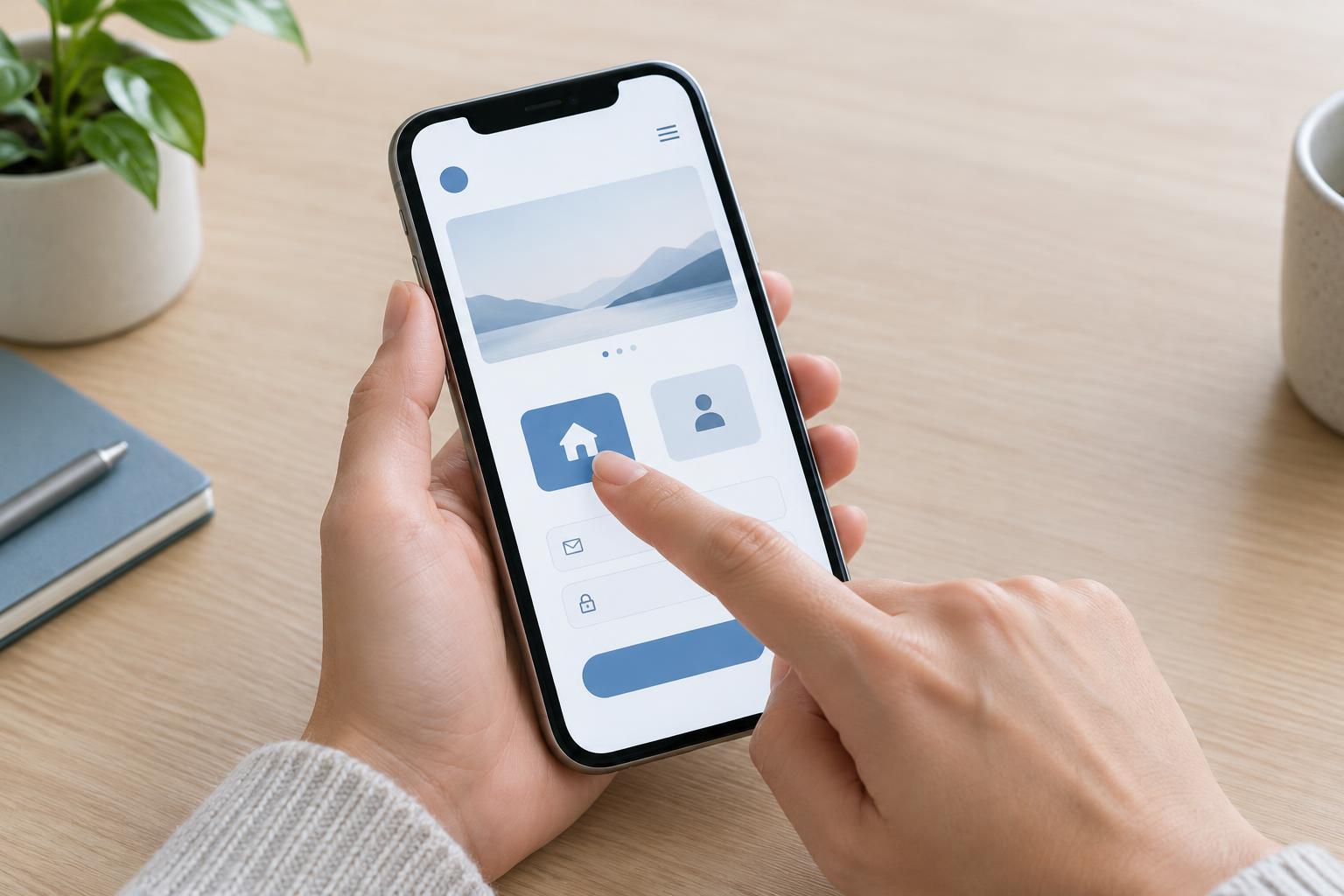
A touch target is the area a visitor can tap to activate a link, button or other control. It may be larger than the text or icon they see. A small magnifying-glass icon, for example, can sit inside a generously padded search button. This lets you preserve a compact visual design without requiring visitors to tap a tiny shape precisely.
People use phones while moving, holding bags or operating a device with one hand. A generous target helps in those situations and can also make a site easier for people with limited dexterity. Start by identifying the controls visitors need most: navigation links, search, form fields, submit buttons and actions such as closing a menu. These deserve space even when the screen feels crowded.
Choose a workable size and leave room around it
For a small website, a useful design starting point is a touch area around 44 by 44 CSS pixels for prominent controls. Treat that as a practical target, not a rule that every piece of linked text must follow. CSS pixels describe the size used in a page layout; they are not necessarily the same as the physical pixels on a phone screen. If space is tight, consider changing the layout before shrinking an important control.
Spacing matters alongside size. Two large buttons pressed directly together can still lead to accidental taps. Give neighboring actions a visible gap, particularly when their effects differ, such as “Save” and “Delete.” In a narrow header, it may be better to move secondary actions into a clearly labeled menu than to squeeze several icons into one row. For a list of links, increasing each row’s padding can make both the text and the surrounding area easier to tap.
Make the clickable area match what people expect
A control can look roomy while remaining hard to use if only its text or icon is clickable. Put padding on the link or button itself, rather than adding empty space to a surrounding element that does not respond to taps. For a menu item styled as a full-width row, make the whole row the link where that behavior makes sense. Keep each target’s boundaries predictable so visitors are not surprised by what opens.
Use real links for navigation and buttons for actions such as opening a menu. This supports keyboard use and helps assistive technology identify each control. An icon-only button needs an accessible name that describes its action, such as “Open menu,” not merely the name of the icon. A visible text label is often even clearer. Remember that a larger hit area does not fix a control whose purpose is hard to understand.
Handle dense content and forms deliberately
Not every mobile link can become a large standalone button. Links within paragraphs need to remain readable as prose. Avoid placing several short links immediately next to one another where a visitor may struggle to select the right one. When links represent separate choices, a short list with space between items may work better than a crowded sentence.
Forms are another place to look for missed taps. Give labels and fields enough room, make checkboxes and radio buttons easy to select, and separate neighboring options clearly. Where appropriate, connecting a label to its control lets a tap on the label select the option too. Keep error messages close to the field they describe, but do not crowd out the control. On a small screen, a straightforward single-column form is often easier to manage than several narrow fields side by side.
Test the tasks, not just the measurements
A design checklist is a good start, but it cannot show every awkward interaction. Open the site on a phone and try common tasks: navigate to a service page, use search, fill in a form and dismiss any notices or menus. Try tapping with your thumb while holding the device normally. Notice whether you hit the intended control, whether nearby actions compete for space and whether anything becomes difficult when text is enlarged.
Repeat the check after changes to navigation, forms, cookie notices or content templates. If you find a problem, adjust the component rather than fixing only one page: increasing padding on a shared menu item can improve the entire site. Aim for controls that are easy to find, clearly named and forgiving to tap. That combination matters more than making every element look like a large button.


