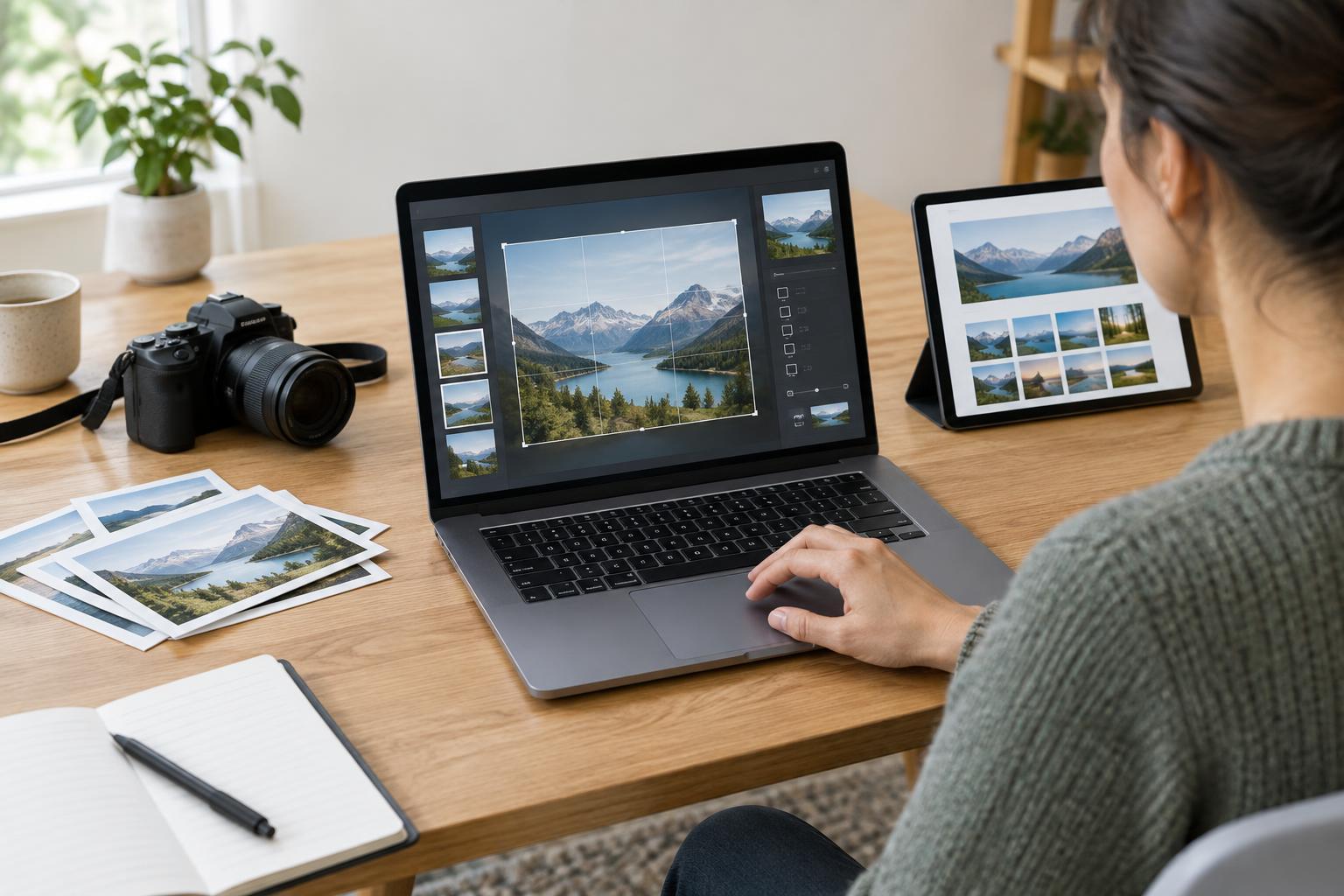
Start with the image’s job
Before opening an export menu, decide where the image will appear. A full-width banner, a small team portrait, and a thumbnail in a list need different crops and dimensions. Check the page layout on both a narrow and a wide screen. Note whether the subject must remain visible when the image is cropped. If an image contains essential words or instructions, put that information in page text instead; text baked into an image can become hard to read on a phone.
Choose the largest dimensions the placement reasonably needs, allowing for sharp display on higher-density screens. There is little benefit in uploading an enormous camera original for a small card, but an export that is too small may look blurry when the layout expands. If your content management system creates several sizes from one upload, find out which version the page actually serves. That helps you avoid both unnecessary manual exports and oversized images.
Crop and clean up before exporting
Make the crop deliberately rather than relying on an automatic center crop. Leave enough room around faces, products, or other important details for the layout to adapt. Straighten and adjust brightness if needed, but avoid edits that misrepresent what the image shows. For a consistent set of article images, use similar proportions where the design calls for them; this makes lists and grids easier to scan.
Check the file for details you do not intend to publish. A photograph may carry location or device metadata, and a screenshot may reveal names, account details, or open browser tabs. Remove or obscure sensitive material before upload. Keep a working copy of the original outside the website’s media library so you can make a different crop later without repeatedly editing an already compressed file.
Choose a format and balance quality with file size
For photographs and other images with many colors, JPEG or WebP is often a practical choice. PNG is useful when you need transparency or crisp graphics, though it can produce a large file for a photograph. SVG can suit simple logos and icons, but only upload SVG files if your publishing system handles them safely and your team has a way to review their contents. AVIF may make files smaller, but check whether your tools and publishing setup support it well.
Export at a quality setting that preserves the details people need, then inspect the result at the size it will appear on the page. Look for blocky edges, smeared textures, and muddy text. Compare file sizes among a few acceptable versions rather than assuming the highest-quality setting is necessary. Compression is a trade-off: the goal is a clear image with no wasted weight, not the smallest file at any cost.
Make uploads understandable and reusable
Give files short, descriptive names before uploading, such as workshop-entrance.jpg rather than a camera-generated string. Use a consistent naming pattern that helps editors find the right image later. Avoid putting private information in filenames: it may remain visible in the media library or image address. A filename is useful for organization, but it does not replace a caption or alternative text.
Write alternative text in the content editor according to the image’s purpose on that page. Describe meaningful visual information that the surrounding text does not already provide. A decorative image may need empty alternative text, while a chart needs its main point conveyed in nearby text as well. The same image can need different descriptions in different contexts, so review this when placing it rather than treating it as an export setting.
Check the page, then make the process repeatable
After publishing a draft, inspect it on a phone-sized screen and a wider screen. Confirm that the intended crop appears, the image is sharp enough, and the page does not visibly jump as images load. If your system offers responsive image sizes or lazy loading for images farther down the page, check that those features are working as expected. Do not lazy-load an image that visitors see immediately if doing so delays its appearance.
Record a simple team checklist: intended placement, crop, dimensions, format, visual check, filename, privacy check, and alternative text. Keep it alongside your publishing instructions. When a page feels slow, start by checking its largest image files and whether the displayed images are using appropriate sizes. A consistent upload habit is easier to maintain than a one-time cleanup of a crowded media library.


