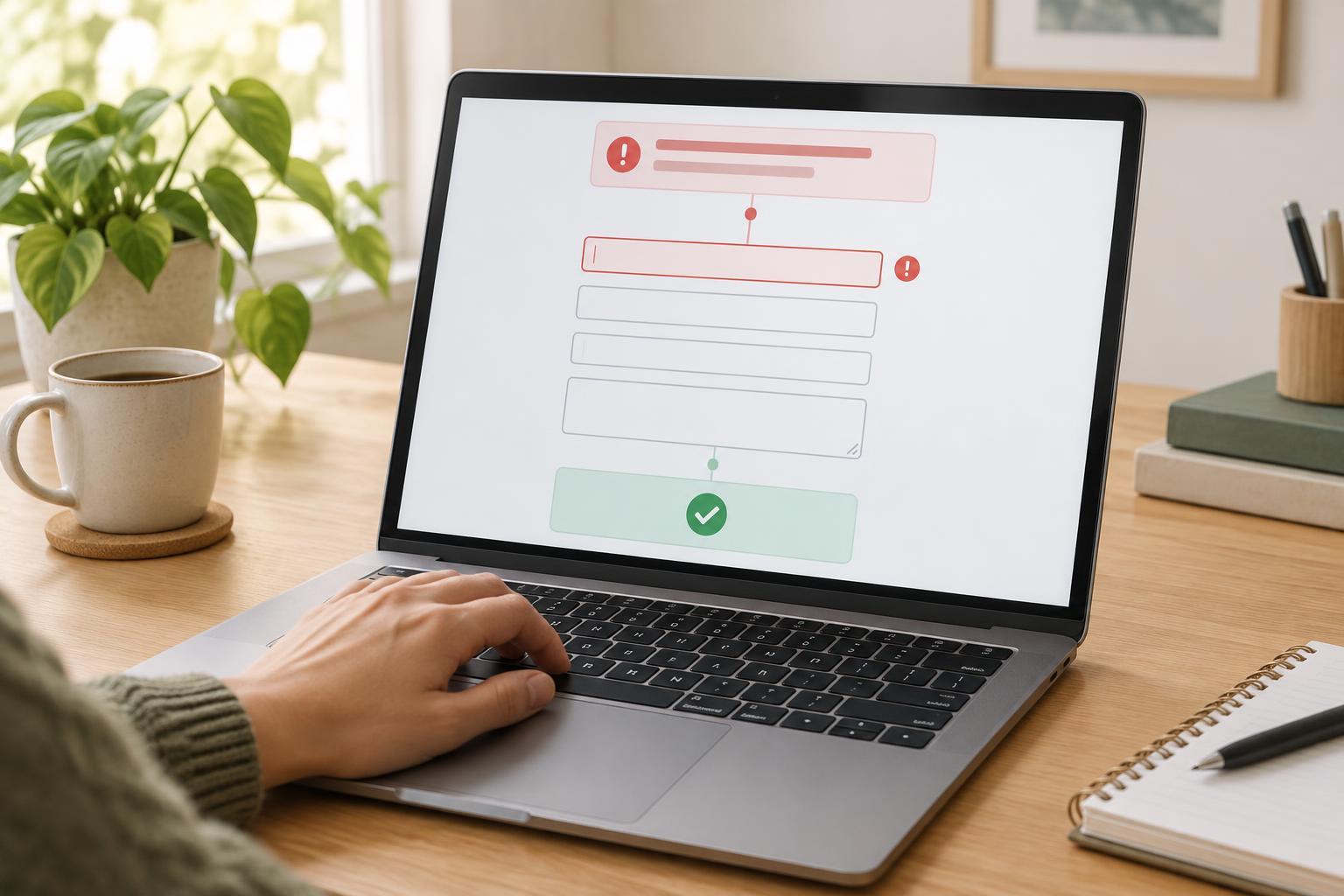
Start with a recoverable task
Imagine someone submitting a contact form from a phone. The page reloads, a red border appears around one field, and every answer they entered has vanished. Even if the form correctly detected an error, it has made recovery difficult. Good error handling preserves the person’s work, identifies what needs attention, and explains what to do next.
Begin by reviewing the form itself. Ask only for information you need, mark required fields clearly before submission, and provide format guidance where it will help. If a field requires an email address, label it “Email address” rather than relying on placeholder text inside an empty box. An example can clarify an unfamiliar format, but it should not disappear along with the person’s typing.
Put a useful message beside each field
An error message should name the problem and offer a way forward. “Enter an email address” is more useful than “Invalid input” when the field is empty. If an address does not have a usable format, “Enter an email address in the format name@example.com” gives the person something to check. Keep the wording direct and avoid blaming language such as “You failed to complete this field.”
Place the message near the field it concerns, preferably immediately after the input. Keep the visible label in place so the field remains identifiable. Color can reinforce the error, but do not make color the only clue: a message or text indicator must also communicate what happened. In the form’s code, associate the message with its input so assistive technology can present them together. Where appropriate, mark an invalid input as invalid while the error remains, and clear that state after the problem is fixed.
Show the whole picture after submission
On a short form, inline messages may be enough to spot visually, but a person using a keyboard or screen reader may not know that submission failed. Add an error summary near the top of the form that states the outcome plainly, such as “There are two problems to fix.” List the affected fields using the same names as their labels. When the form is long, make each item a link to its field so the person can move directly to it.
After an unsuccessful submission, move focus to the error summary, or use another deliberate approach that makes the result apparent without forcing someone to hunt through the page. Check where focus lands when a summary link is activated: it should take the person to a useful point in the form, not merely change the scroll position. Keep previously entered values whenever possible. People should not have to retype correct answers because one field needs attention.
Validate without interrupting people
Choose when to show errors with care. Displaying “Required” as soon as a person tabs into an untouched field can feel like an interruption. A common approach is to check the full form on submission, then update a field’s message as the person corrects it. If you also validate while someone types, allow enough time to finish a normal entry before declaring it wrong. Whatever pattern you choose, make it consistent across the form.
Client-side checks can offer quick feedback, but they are not a substitute for checking submissions on the server. The two should use compatible rules and similarly helpful messages, or someone may be told that an answer is acceptable only to have it rejected later. For errors that are not tied to one field, such as a submission that could not be completed, explain what happened in general terms, whether the entered information was saved, and what the person can try next. Do not imply a message was sent if it was not.
Test the path back to success
Test with realistic mistakes rather than only a perfect submission. Leave required fields blank, enter a partial address, make two errors at once, and trigger a server-side rejection if the form has one. For each case, ask: Can I tell the form was not submitted? Can I find every problem? Do the messages tell me how to fix it? Are my other answers still there?
Repeat those checks using only a keyboard, then with a screen reader if you have access to one. Zoom in and try a narrow screen to see whether the summary, messages, and fields remain easy to connect. Finally, correct the errors and submit again. The goal is not just to announce a problem; it is to make the next successful step clear.


