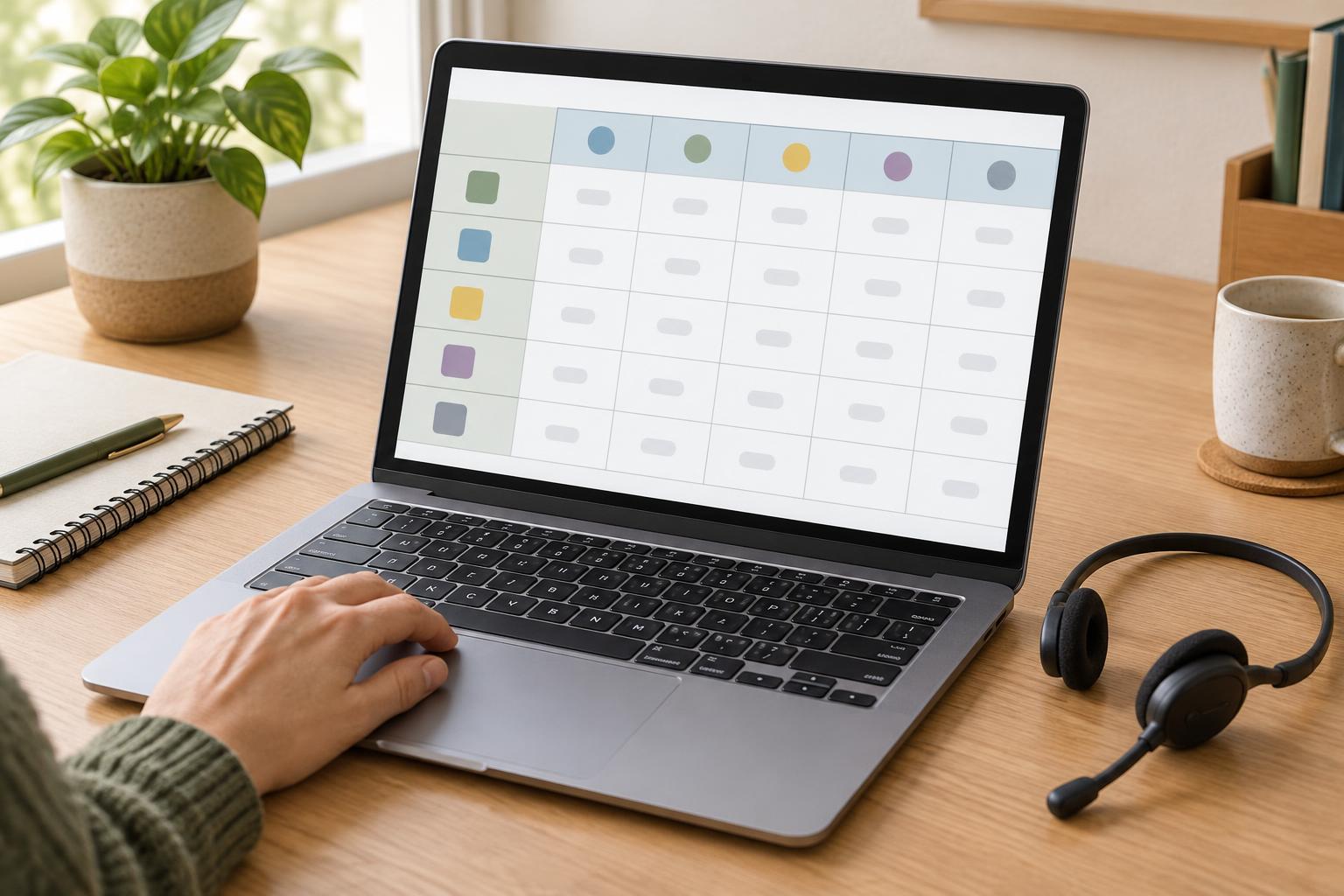
Start with a question the table can answer
A data table is useful when readers need to compare values across rows and columns. A small organization might use one to show room capacities by venue, service hours by day, or fees by membership type. Before building the table, write down the comparison it should support. That decision helps you choose clear headings and avoid including details that belong in surrounding text instead.
Give each row one consistent meaning and each column one consistent meaning. For example, in a table of room capacities, rows could name rooms while columns identify seating layouts. The number at their intersection then has a clear interpretation. If a table mixes capacities, booking rules, and contact details in the same grid, readers may struggle to follow it. Consider splitting that information into a table and a short note.
Mark headers as headers, not just bold text
Visual styling can make a cell look like a heading, but appearance alone does not describe its role to assistive technology. In an HTML data table, use table header cells for labels and ordinary data cells for values. The first row commonly contains column headers. If the first cell in each later row names that row, mark those cells as row headers too. A table with both kinds of headers gives readers two useful reference points for each value.
For a straightforward table, identify column headers with scope="col" and row headers with scope="row" on the relevant header cells. Scope describes which cells a header applies to. A cell containing “Meeting Room A” might be a row header, while “Theatre layout” is a column header; the value where they meet is the capacity for that room in that layout. Keep header labels specific enough to stand on their own. “Price” may be less helpful than “Monthly price” if several kinds of price appear nearby.
Add context without crowding the grid
A brief caption can identify what the whole table covers, such as “Room capacities by seating layout.” It is especially helpful when a page contains multiple tables. Place qualifications that affect the entire table near it in ordinary text. If a capacity changes when accessibility space is reserved, explain that condition rather than expecting a reader to infer it from the numbers.
Avoid using empty cells as a substitute for an explanation. If a combination is unavailable, a short label such as “Not available” is usually clearer than a blank. If a value is genuinely unknown, say so. Also check units: a column headed “Width” needs a unit in the heading or an accompanying explanation. Clear labels reduce the amount of backtracking required for anyone scanning the table.
Keep the structure as simple as the information allows
Simple tables are easier to read and maintain. Resist merging cells just to create a particular visual effect. Spanning headers can be appropriate when columns form meaningful groups, but they make relationships harder to check. If your table needs several header levels, ask whether two smaller tables would communicate the information more clearly. Where a complex structure is necessary, header associations may need more explicit markup than basic row and column scope; plan time to test it.
On narrow screens, do not solve a wide table by turning each value into an unlabeled block. Readers still need to know which row and column a value belongs to. First shorten labels where that does not change their meaning and remove nonessential columns. If the table must remain wide, a horizontally scrollable table can preserve its relationships, provided the page makes the overflow usable and the content remains readable when enlarged.
Check the published table as a reader would
Before publishing, follow a few values across the table. For each one, can you identify its row, column, unit, and any important condition? Then try navigating the table with a keyboard and, if available, a screen reader. Listen for whether the relevant headers are announced as you move between cells. Automated checks may flag missing markup, but they cannot decide whether your labels make sense.
Finally, check the table on a small screen and at increased text size. Look for clipped values, hidden headings, or a scroll area that is difficult to use. When the data changes later, review the headers and explanatory notes along with the values. An accessible table is not a one-time formatting task: its structure needs to remain accurate as the information grows or changes.


