Set up a realistic test
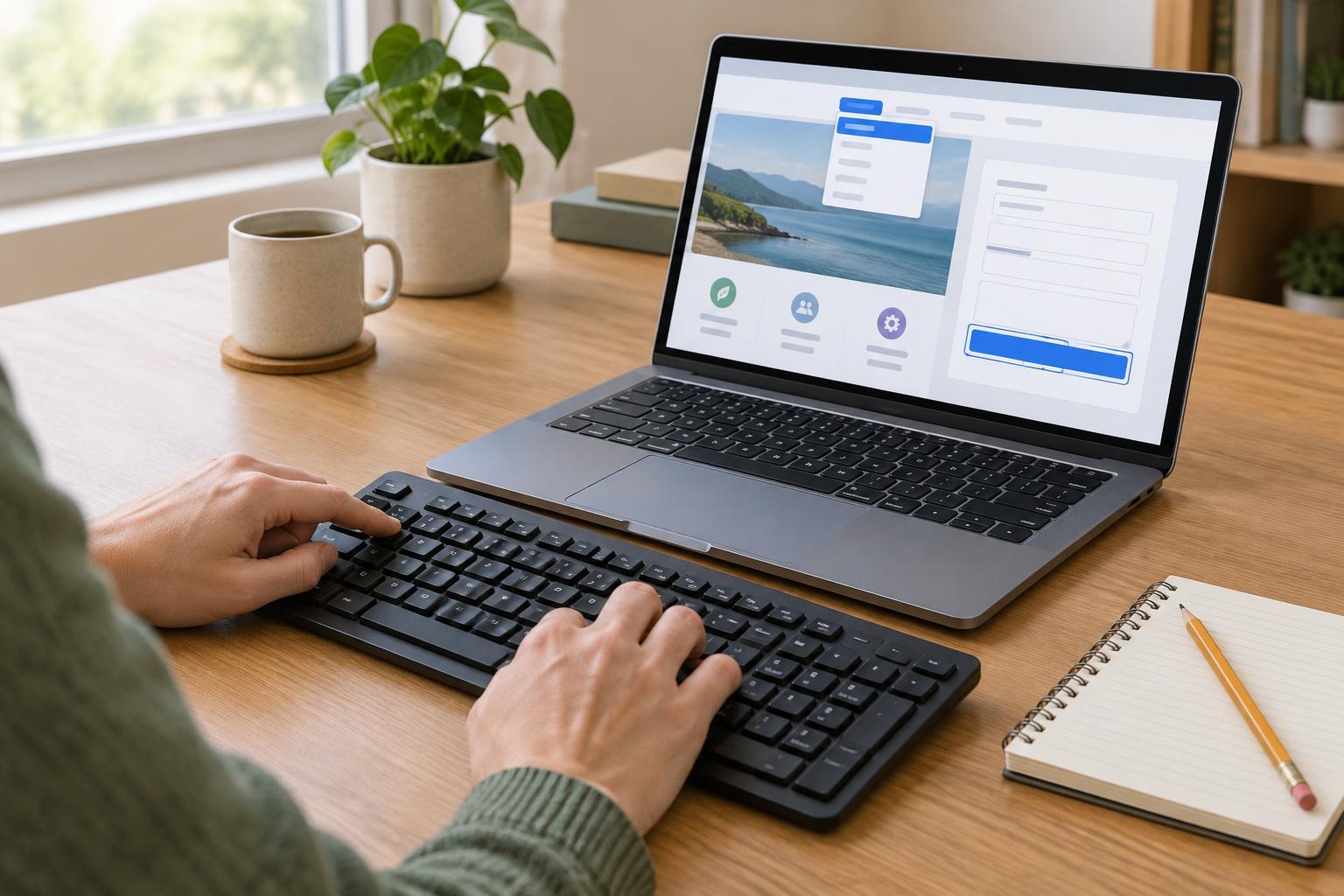
A keyboard test asks a simple question: can someone get through the site without using a mouse or trackpad? It is a useful check for a small website because a short visit can uncover controls that are difficult or impossible to operate. It does not replace testing with assistive technology or checking other aspects of accessibility, but it gives you a manageable place to start.
Choose a few representative pages rather than testing only the home page. Include a page with the main navigation, a longer article, and any page where visitors complete an important task, such as sending an enquiry. Close any open menus, put the pointer aside, and start at the top of each page. Keep a note of the page, the control you were trying to use, and what happened.
Follow the focus through the page
Press Tab to move forward between interactive elements and Shift+Tab to move backward. As you go, look for a visible focus indicator: an outline, underline, colour change, or another clear sign of where the keyboard is. You should be able to tell which item will respond before you activate it. If focus seems to disappear, check whether it has moved to an off-screen or visually hidden control.
Work through the page in the order a visitor might encounter it. Can you reach the logo link, navigation, search, article links and footer? Does the sequence make sense, or does it jump unexpectedly across the screen? On a long page, check whether a skip link appears near the start and takes you past repeated navigation to the main content. Then use Shift+Tab to confirm you can move back without getting stuck.
Do not judge the test by the number of times you press Tab. A short page and a complex page will differ. Instead, ask whether each interactive item is reachable and whether its place in the sequence is understandable.
Operate controls, not just links
Reaching a control is only half the test. Use Enter to follow a link or activate a button. Try Space on buttons and checkboxes, and use arrow keys where a control calls for them, such as a group of radio buttons or a select menu. If a control appears to be a button but responds only to a click, record that as a problem. Plain text does not need to receive focus; interactive elements do.
Pay particular attention to expandable navigation, search panels and other controls that reveal content. Open them, move through their contents, and close them. If a dialog opens, check that keyboard focus moves into it, stays where the dialog can be used, and returns to a sensible place when it closes. Try Escape where closing with Escape would be expected. You should always have a way to leave a component and continue through the page.
If the site has controls that appear only when someone hovers over them, see whether keyboard focus reveals and operates those same controls. A visitor should not need to guess that an action exists.
Complete a form from start to finish
On a page with a form, use the keyboard to enter information into every field, select options and reach the submit button. Check that you can tell which label belongs to each field as you move through it. Required fields and instructions should be clear before you submit, rather than appearing only after something goes wrong.
Next, deliberately leave a required field empty or enter an invalid value. After submitting, can you find the error without switching to the mouse? Can you move to the field that needs attention, correct it and submit again? If submitting would send a real message or place an order, use a safe test environment or stop before the final submission. You can still check most of the route without creating unwanted entries.
Turn observations into small fixes
Write down problems in terms another person can reproduce: the page, the starting point, the keys pressed, what you expected, and what happened instead. For example, “After opening the navigation menu, Tab moves behind it rather than to its first link” is more useful than “menu broken.” Note whether the problem blocks an essential task, makes a task confusing, or is a smaller interruption.
Fix one issue at a time and repeat the same keyboard route afterward. A change to a menu or form can affect other parts of the focus sequence, so check nearby controls as well. Make keyboard testing a routine part of publishing new pages and changing shared components. A short, repeatable check will not catch every accessibility problem, but it can prevent familiar obstacles from returning.


