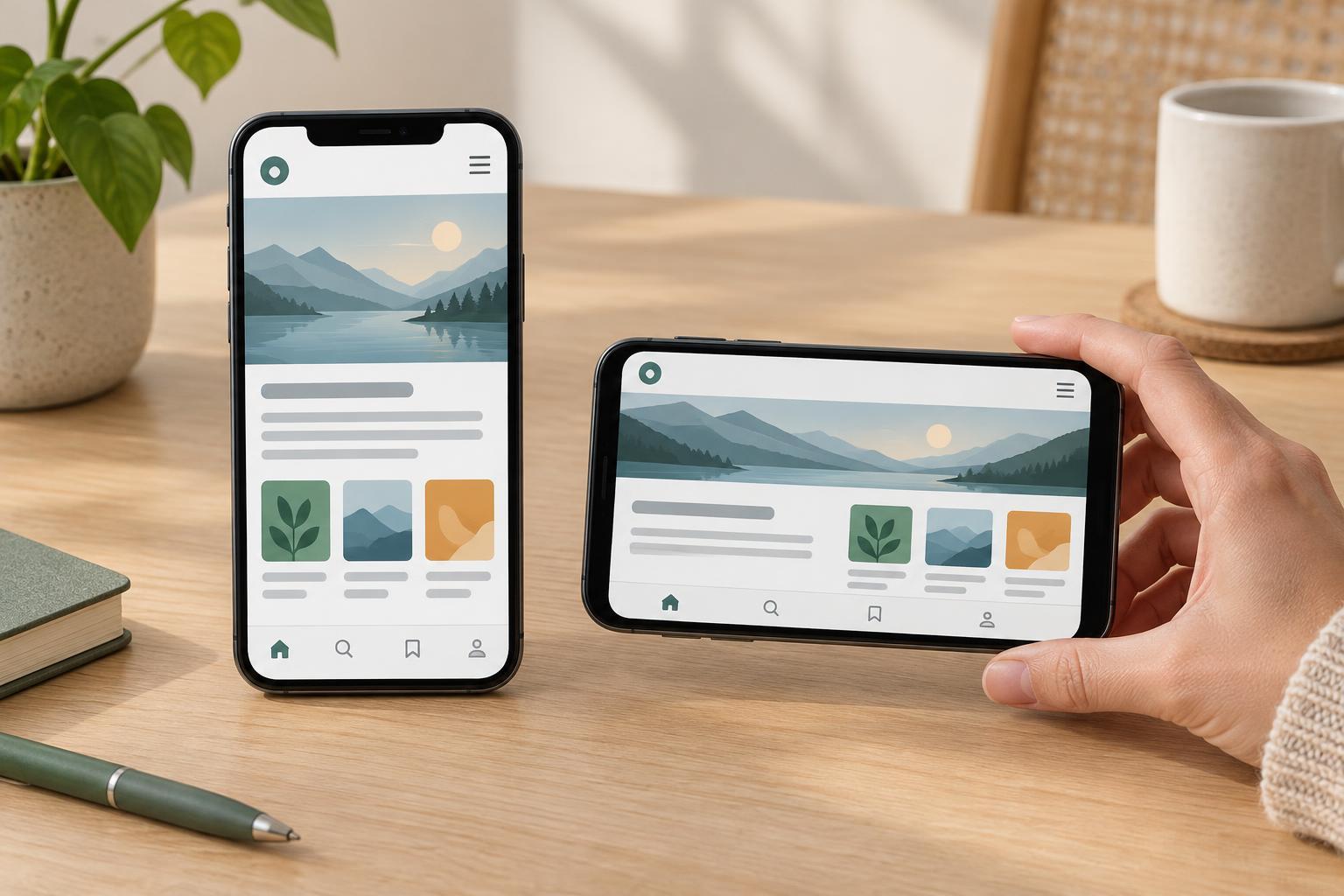
Design for the space available, not a device label
A phone in portrait mode usually offers a narrow, tall viewing area. Turn it sideways and the page becomes wider but much shorter. That change can expose problems that a portrait-only review misses: a header takes up most of the screen, a form button disappears below a keyboard, or two columns become too cramped to read.
Start with the order in which people need the content. Put the page title, essential information and primary action in a sensible reading sequence before deciding where elements sit visually. A layout built around that sequence can stack in narrow spaces and spread out when there is room. Avoid making either orientation a special case that requires different content or a separate journey.
Let content determine when the layout changes
Use flexible widths and sensible maximum widths so text can grow without stretching across an uncomfortable line. A single column is often the clearest starting point for a small screen. Add a second column only when both columns have enough room for their actual contents, including longer headings, translated labels or enlarged text. Choose layout breakpoints where the design begins to struggle, rather than assuming every phone needs the same breakpoint.
Allow cards, images and tables to adapt without forcing the entire page to scroll sideways. Images can fit within their containers while keeping their proportions. If a data table genuinely needs more width, give that component its own clear horizontal scrolling area and keep its labels understandable. Check that essential information is not conveyed only by an image crop that changes between orientations.
Height matters as much as width. Avoid fixing sections to the height of the screen when they contain text or controls; landscape mode may leave little vertical space, especially when browser controls or a keyboard are visible. Let sections grow with their contents and let the page scroll normally.
Keep navigation and controls reachable
A compact menu can save space, but its button still needs a clear name and an obvious open and closed state. When the menu opens, its items should remain visible and usable without being cut off by the bottom edge of a short landscape screen. If an overlay is necessary, make its contents scrollable and provide a straightforward way to close it.
Give links and buttons enough space to tap accurately, with separation between neighboring actions. Do not rely on gestures, such as swiping, as the only way to reach content. Keep focus indicators visible for people using a keyboard or other input device, and make sure the focus order follows the meaning of the page rather than an arrangement that happens to look tidy.
Be cautious with sticky headers, bottom bars and floating buttons. Each may be useful, but together they can leave very little room for content in landscape. A sticky element should not cover headings, focused fields or error messages. If it creates that problem, reduce its size or let it scroll away.
Make forms work when space gets tight
Forms reveal orientation problems quickly. Place each label close to its field, keep instructions available while someone is entering information, and show errors beside the relevant fields in text. A form that uses side-by-side fields in landscape should still have enough width for labels, entered values and error messages. Stacking fields is better than squeezing them into a row.
Test what happens when a field receives focus and the on-screen keyboard appears. The person should be able to see what they are editing, scroll to any guidance or error, and reach the submit button. Avoid positioning a critical action so that it depends on a particular screen height. If the page includes a long form, short sections and descriptive headings can make it easier to resume after scrolling.
Test by turning the screen during a real task
Review a few important tasks rather than judging only a screenshot of the home page. Try opening the navigation, reading an article, completing a form and recovering from an error. Turn the device while partway through each task. Content already entered should remain in place, and the user should not have to find their position again.
Test narrow portrait and short landscape viewports, then increase text size or zoom and repeat. Look for clipped content, overlapping controls, unwanted page-wide horizontal scrolling and text that becomes difficult to read. Check with touch and a keyboard where possible. Browser resizing is useful for finding layout weaknesses, while a real phone helps reveal the effects of browser controls and the on-screen keyboard.
When something fails, fix the underlying constraint rather than adding a rule for one device. A flexible container, a shorter sticky header or a content-based breakpoint is usually easier to maintain than a collection of orientation-specific patches. The goal is not to make both views identical; it is to keep the same information and tasks usable in either one.


