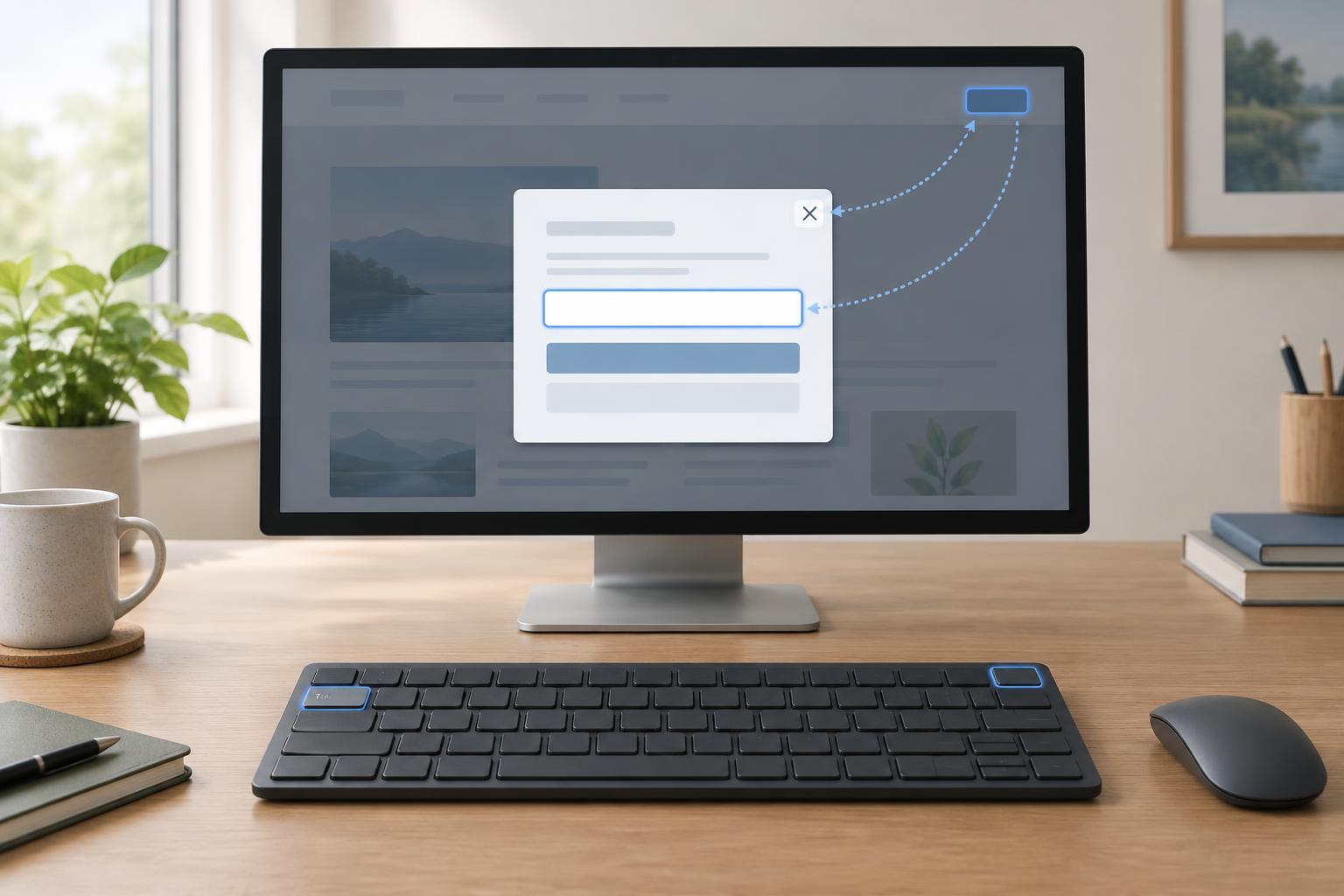
Decide whether a dialog is the right container
A dialog places a task or message above the surrounding page. It can be useful for a short confirmation, a small form, or a choice that belongs to the visitor’s current task. It is less useful for lengthy instructions or content people may need to compare with the page behind it. For those cases, an ordinary page or an expandable section may be easier to navigate.
Make the distinction between modal and non-modal behavior before writing code. A modal dialog temporarily prevents interaction with the rest of the page; focus and keyboard navigation should stay within it until it closes. A non-modal dialog allows people to continue using the page, so it must not trap focus. Do not label a dialog as modal unless the rest of the page is genuinely unavailable while it is open.
Give the dialog a name and a useful starting point
Use a visible heading that says what the dialog is for, such as “Delete this draft?” or “Choose a contact method.” Programmatically connect that heading to the dialog so assistive technology can announce its name. If a short description is needed, connect it as a description rather than relying on visual placement alone. The heading should still make sense when heard without the surrounding page.
When a modal opens, move keyboard focus into it. The best starting point depends on the task: a first form field may suit a short form, while the heading or an introductory element may be better when someone needs to read information before acting. For a destructive confirmation, consider starting on the least destructive action rather than making the dangerous choice the easiest one to activate. Avoid moving focus automatically to a control far below the beginning of a long dialog.
The HTML dialog element, opened with showModal(), can provide much of the underlying modal behavior. It does not decide which starting point makes sense for your content, however. Test the opening experience with a keyboard and a screen reader rather than assuming the first focusable element is always the right destination.
Keep modal focus predictable
While a modal dialog is open, Tab and Shift+Tab should move among its interactive elements without landing on links or controls behind it. The background should not merely look inactive; it should also be unavailable to keyboard and assistive-technology interaction. Native modal dialog behavior can help with this. If you build a custom dialog, managing background interaction and focus takes additional care.
Keep the order inside the dialog logical. A person should encounter the title and explanation before choices that depend on them, and the order of keyboard focus should follow the visible layout. Avoid positive tabindex values to force an order: they can become confusing as the dialog changes. If validation finds an error, explain it near the relevant field and move focus in a way that helps the visitor locate and correct it.
When the dialog closes, return focus to the button or link that opened it when that control still exists. If completing the task removes that control—for example, after deleting an item—choose another sensible destination near the changed content. Without this return path, keyboard users may find themselves back at the start of the page or unsure where the task ended.
Make closing obvious and dependable
Provide a visible close control with a clear accessible name. A button labeled “Close” is straightforward; an icon button needs a text alternative such as “Close dialog.” Place it where people can find it easily, and make sure it can receive keyboard focus. For a confirmation, also provide action labels that explain the outcomes, such as “Keep draft” and “Delete draft,” rather than leaving visitors to interpret a generic “Cancel” or “OK.”
For most modal dialogs, Escape should close the dialog unless doing so would interrupt a task in a way that needs special handling. Clicking outside may be an additional convenience, but it should not be the only way to close. Avoid designs that require visitors to submit a form, follow a link, or use a pointer before they can leave. If closing would discard entered information, explain that consequence and offer a clear choice instead of silently losing the work.
Test the whole journey, not just the open state
Start at the control that opens the dialog and complete the task using only a keyboard. Check where focus lands, move forward and backward through every control, close with the visible button and with Escape, then check where focus returns. Repeat after form errors and after any action that changes or removes content on the page.
Also check the dialog at narrow widths and higher zoom levels. Its heading, actions, and close control should remain reachable without trapping content off-screen. Finally, listen with a screen reader to confirm that the dialog’s name and relevant instructions are announced and that the background is not presented as an active part of a modal task. These checks turn a visually tidy overlay into a usable part of the website.


