Start with a short, predictable route through the site
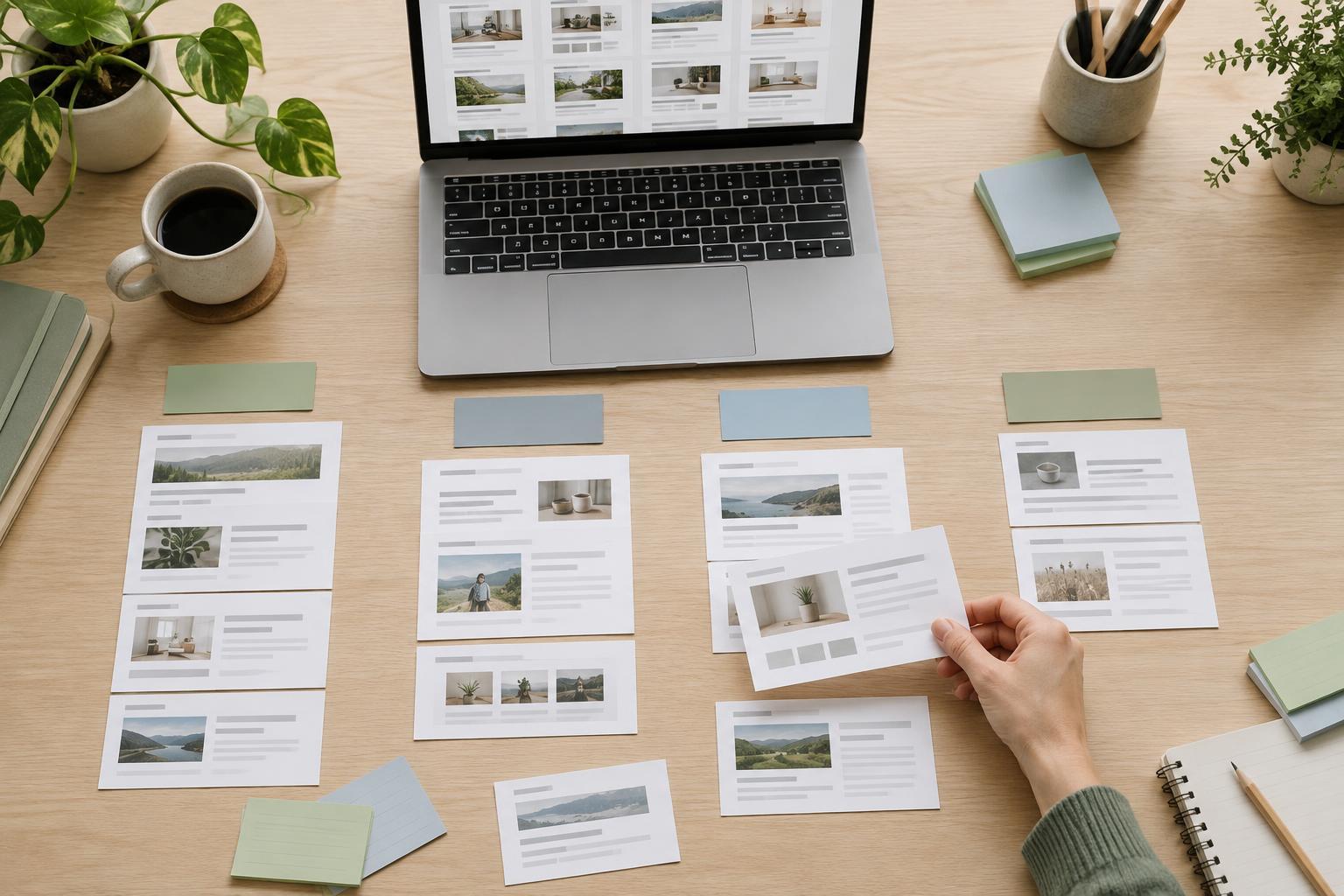
A navigation menu is a set of choices, not a complete map of everything a website contains. Begin with the pages visitors are most likely to need: for example, services, pricing, about, and contact. Use labels that describe the destination rather than internal department names or clever phrases. If a label could mean several things, ask someone unfamiliar with the site where they would expect it to lead.
Keep the order and wording of primary navigation consistent across pages. This helps visitors learn where to look, including those who enlarge the page or use assistive technology. A long list of equally prominent links can be harder to scan than a few well-chosen groups. Before adding a submenu, consider whether a category landing page would let visitors make the next choice with more context.
Choose a simple structure before adding interactions
For a small site, a visible list of ordinary links is often the easiest option to build and maintain. Links should take visitors to pages. Buttons should perform actions, such as opening or closing a menu. Keeping those jobs separate makes it clearer what will happen when someone activates a control.
Expandable navigation can be useful when the available space is limited or several related links need grouping. Give each group a visible, meaningful label. If the group label itself leads to a useful page, consider placing a separate button beside that link to expand the group. Otherwise, making one control both navigate and expand can leave visitors unsure how to reach the destination.
Make every menu state understandable
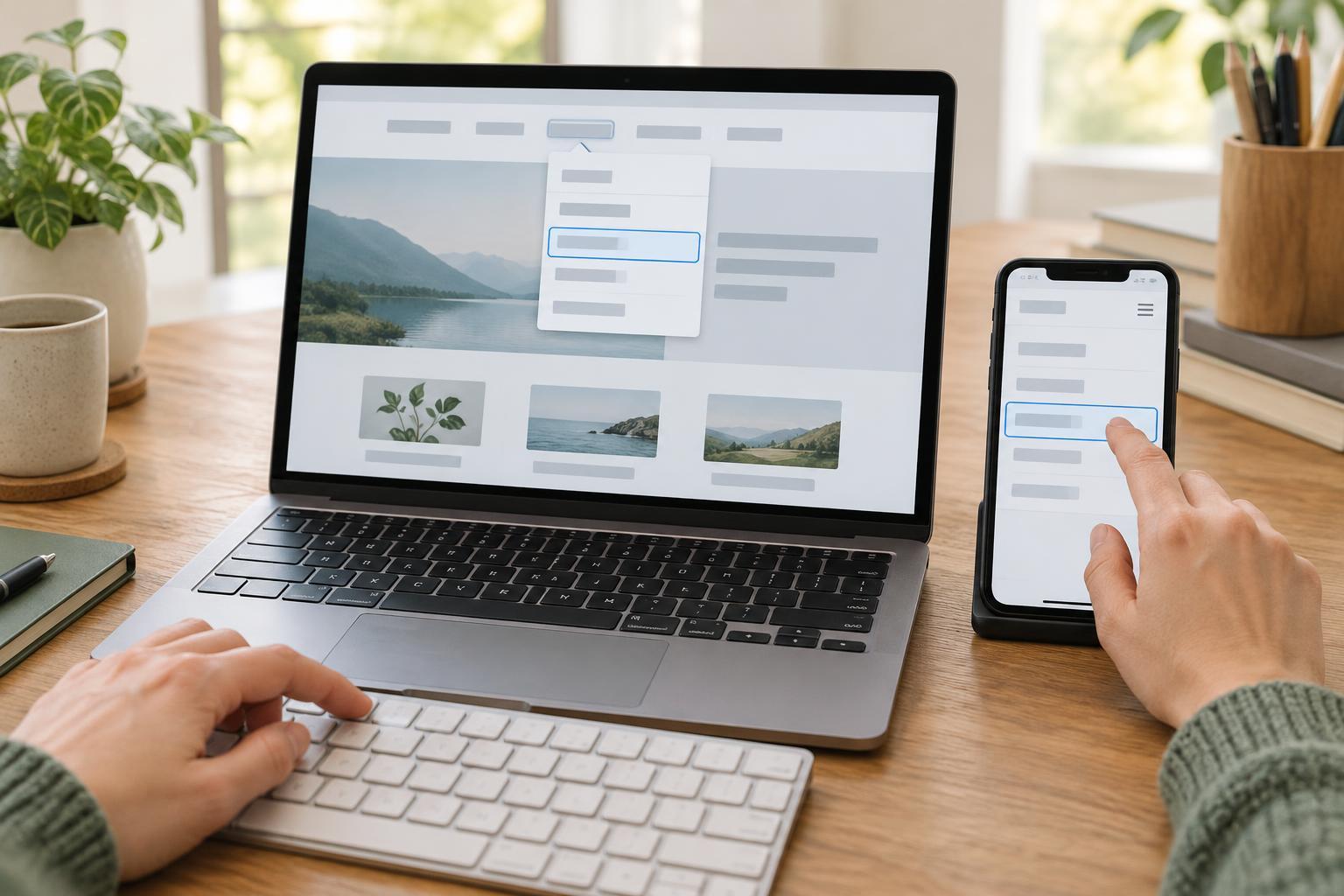
An expandable menu needs an obvious way to open and close. Use a button with a name that identifies what it controls, such as “Open services menu,” and make its expanded or collapsed state available to assistive technology. The visible design should communicate that state too: a changed label, icon, or other clear cue can help, but an icon alone may be ambiguous.
When a menu is closed, its hidden links should not remain in the keyboard tab sequence. When it opens, visitors should be able to reach its links in a sensible order and close it without hunting for a control elsewhere. If a menu covers much of a small screen, keep the close button easy to find. Avoid making hover the only way to reveal links; hover is unavailable to many touch users and can be difficult for people who move a pointer imprecisely.
Let the menu fit the screen without changing its meaning
A layout may show all primary links on a wide screen and place them behind a menu button on a narrow one. The destinations and their names should remain recognizable in both versions. Check the narrow layout at increased text size as well as at its default size: longer labels may wrap, and a fixed-height panel may cut off links.
Make room for people to tap each control without accidentally activating its neighbor. If the open menu extends beyond the visible area, ensure visitors can scroll to its remaining links. Watch for a common problem on mobile layouts: the page scrolls, but the menu does not, leaving the last choices unreachable. A straightforward vertical list is often more dependable than several nested panels.
Test the journey, not just the appearance
Try the menu from the first page a visitor might reach. Use a keyboard to open it, move through its controls, follow a link, and return to close it. Confirm that focus remains visible and that closing the menu does not leave keyboard users on an invisible item. Repeat with touch on a narrow screen, including when the device is rotated or text is enlarged.
Finally, listen to the menu with a screen reader if one is available. Check whether the controls have useful names, whether their open or closed state is announced, and whether the link order makes sense. Record problems as specific tasks, such as “the final submenu link cannot be reached when text is enlarged,” rather than as a vague instruction to make the menu accessible. That makes the next improvement easier to implement and verify.